
At Web Moves, I juggle a lot of context. Server configs for client sites, DNS records, deployment notes, WooCommerce quirks I’ve solved before but will absolutely forget six months from now. A few years back I started dumping all of this into Obsidian, and it quickly became the closest thing I have to a second brain.
The problem is, brains aren’t much use if you can’t access them at the right moment.
Why Obsidian?
If you haven’t come across Obsidian yet, it’s a note-taking app that stores everything as plain Markdown files on your local machine. No cloud lock-in, no proprietary format, no subscription for the core product. If Obsidian disappeared tomorrow, you’d still have every note in a format any text editor can open.
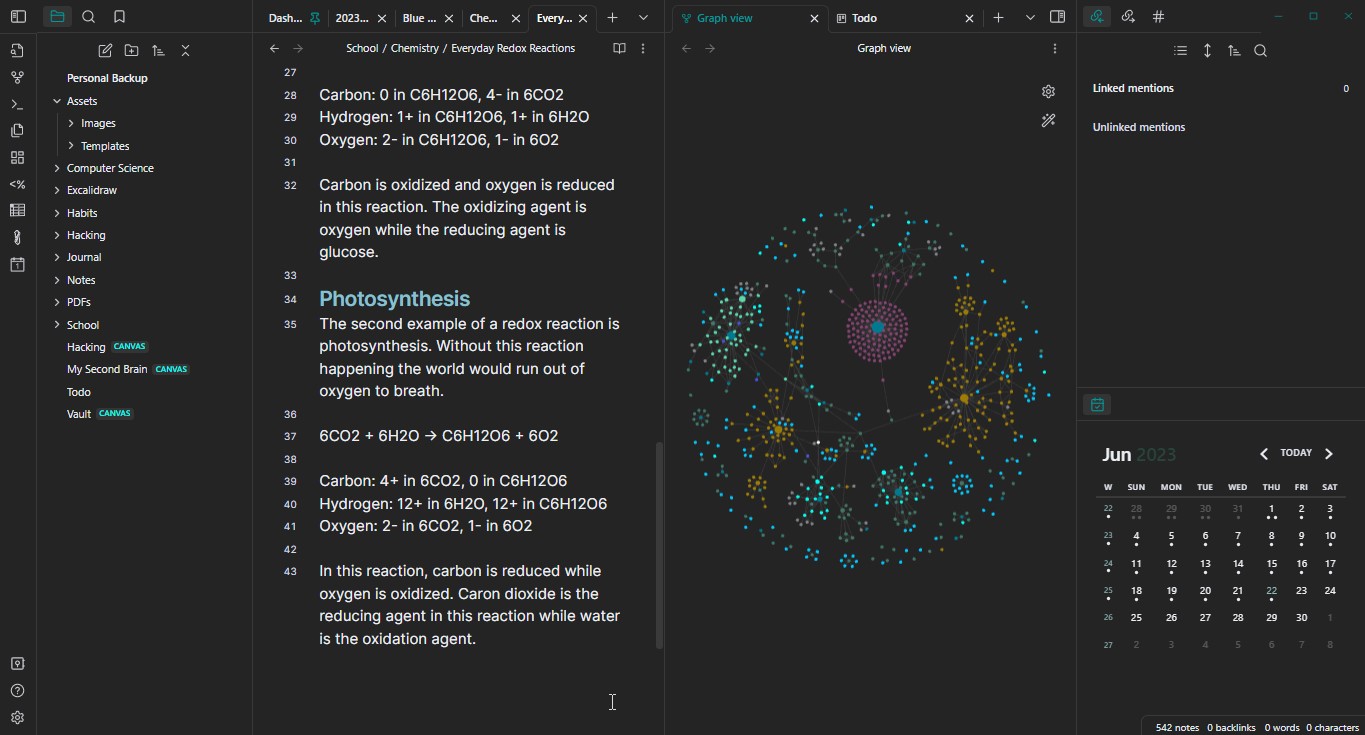
What makes it stick for me is the linking. You can connect notes together, build out a personal wiki, and over time your vault turns into this web of interconnected documentation rather than a pile of disconnected files. I use it for server documentation, project notes, client details, random ideas at 2am… all of it goes into the vault.
The Workflow Problem I Kept Running Into
I’ve been using Claude (Anthropic’s AI assistant) heavily for development work. Writing scripts, debugging server issues, researching solutions, brainstorming approaches. Pretty standard stuff if you’ve been following along with how AI tools are fitting into dev workflows.
But I kept hitting the same friction point. I’d be deep in a conversation with Claude, working through a server migration or troubleshooting a plugin conflict, and I’d need to reference something from my notes. The LAMP stack setup script I wrote last month. The specific nginx config I used for a client’s reverse proxy. The notes I took when I last dealt with that exact WooCommerce shipping issue.
Every time, it was the same routine: switch to Obsidian, hunt for the note, copy the relevant chunk, paste it into Claude, and pick up where I left off. Do that five or six times a day and it starts to feel like a real bottleneck. I had all this documentation organized and linked together in my second brain, but my AI assistant couldn’t see any of it.
The Fix: MCP (Model Context Protocol)
Anthropic released something called the Model Context Protocol, or MCP. In simple terms, it’s a standard that lets Claude connect to external tools and data sources. Someone built an MCP server specifically for Obsidian, and after some trial and error, I got it working with Claude Desktop.
Now Claude can search my vault, read my notes, and even write new ones directly. For my day-to-day work at Web Moves, this has been a genuine productivity shift. When I’m setting up a new client server, Claude can pull up my standard deployment checklist without me lifting a finger. When I’m debugging something I’ve seen before, it can search my notes for how I solved it last time. It’s like having a colleague who has actually read all your documentation, because it has.
What You’ll Need
Before we get into the setup:
- Obsidian installed with a vault you want to connect
- Claude Desktop (the desktop app, not the web version)
- uv – a fast Python package manager (think pip but better)
- Git – for cloning the MCP server repo
I’m running this on Linux (Arch, specifically), but the process should be similar on Mac or Windows with some path adjustments.
Step 1: Install the Obsidian Local REST API Plugin
The way this works is Obsidian exposes your vault through a local REST API, and then the MCP server connects to that API to read and write notes.
Open Obsidian, go to Settings > Community Plugins, and search for “Local REST API.” Install it and enable it. In the plugin settings, configure an API key. Make note of the key and the HTTPS port (defaults to 27124). You’ll need both later.
Step 2: Clone the MCP Server
There’s a Python-based MCP server called mcp-obsidian that handles the connection. Clone it somewhere on your machine:
git clone https://github.com/MarkusPfundstein/mcp-obsidian.git
cd mcp-obsidian
Step 3: Create the Environment File
This is where I burned more time than I’d like to admit. The MCP server needs your API key and connection details, and the most reliable way to provide them is through a .env file in the cloned repo directory:
cat > .env << 'EOF'
OBSIDIAN_API_KEY=your_api_key_here
OBSIDIAN_HOST=127.0.0.1
OBSIDIAN_PORT=27124
EOF
Replace your_api_key_here with the API key from the Obsidian plugin. Make sure you're using port 27124, which is the HTTPS endpoint. I initially tried the HTTP port and things did not go well.
Step 4: Configure Claude Desktop
Now you need to tell Claude Desktop about the MCP server. On Linux, edit ~/.config/Claude/claude_desktop_config.json:
{
  "mcpServers": {
    "mcp-obsidian": {
      "command": "/usr/bin/uv",
      "args": [
        "--directory", "/path/to/mcp-obsidian",
        "run", "mcp-obsidian"
      ],
      "autoApprove": [
        "obsidian_list_files_in_vault",
        "obsidian_list_files_in_dir",
        "obsidian_get_file_contents",
        "obsidian_simple_search",
        "obsidian_complex_search",
        "obsidian_patch_content",
        "obsidian_append_content",
        "obsidian_put_content",
        "obsidian_delete_file",
        "obsidian_batch_get_file_contents",
        "obsidian_get_periodic_note",
        "obsidian_get_recent_periodic_notes",
        "obsidian_get_recent_changes"
      ]
    }
  }
}
A few gotchas that cost me time:
Use the full path to uv. If you're running the Linux AppImage version of Claude Desktop, it can't find executables on your PATH. Spell out the full path, like /usr/bin/uv. Run which uv if you're not sure where it lives.
The --directory flag matters. This tells uv where to find the cloned repo and your .env file. Without it, the server won't know where to look for your config.
Tool names need the obsidian_ prefix. This one got me. In the autoApprove list, every tool name must include the obsidian_ prefix. So it's obsidian_append_content, not append_content. Get this wrong and Claude will prompt you for approval every single time it touches a note. Ask me how I know.
Step 5: Restart and Verify
Completely quit Claude Desktop (not just close the window, actually quit it) and relaunch. You should see a hammer/tools icon indicating MCP servers are connected. If you don't, check the logs:
tail -f ~/.config/Claude/logs/mcp*.logHow This Fits Into My Workflow
Once everything's connected, Claude can search your vault, read any note, create new notes, list files and folders, and access your daily notes and recently modified files.
For my work at Web Moves, here's where this really pays off:
Client server documentation. I keep detailed notes on every client's hosting setup. OS versions, installed packages, database configs, SSL cert details. When I'm SSH'd into a server and need to recall a specific config choice I made three months ago, Claude pulls it up instantly from my vault.
Reusable solutions. Web development is full of problems you solve once and encounter again eight months later. That tricky htaccess redirect pattern, the specific WooCommerce hook for modifying shipping calculations, the exact steps to migrate a WordPress database between environments. It's all in my notes, and now Claude can find it without me remembering which note it's in.
Project handoffs and context switching. When you manage multiple client sites, context switching is the real productivity killer. Being able to say "pull up my notes on the Locks & Hardware project" and have Claude immediately up to speed on where things stand has cut down on the mental overhead of jumping between projects.
Building on past work. Sometimes I'll ask Claude to help me write a new deployment script, and it can reference the notes I took on previous deployments to avoid repeating mistakes. My second brain feeds into the AI's context, and the result is better than either one alone.
Troubleshooting
If things aren't working, here's what bit me:
- Server not connecting? Make sure Obsidian is actually running with the Local REST API plugin enabled. The API only works when Obsidian is open.
- Wrong port? Use 27124 (HTTPS), not 27123 (HTTP). The MCP server defaults to HTTPS.
- Environment variables not loading? The
.envfile needs to be in the exact directory you specified in--directory. Not your home directory, not some other location. - autoApprove not working? Double-check those tool name prefixes. Every single one needs
obsidian_at the beginning.
Worth the Setup?
The initial configuration takes a little patience, especially if you hit the same gotchas I did. But once it's running, it's one of those improvements that compounds over time. The more notes you have in your vault, the more useful the connection becomes. Your AI assistant gets better because it has access to your accumulated knowledge. Your second brain stops being a passive archive and starts actively working for you.
If you're a developer or sysadmin who already keeps notes in Obsidian, this is worth an afternoon of setup. And if you run into trouble getting it working, feel free to reach out. I've probably hit the same wall.